How to download Toshiba drivers
There is no doubt that the world is now going mobile, every body wants something that is handy and easy to carry around, and this development has triggered innovations and recent technological advancement.
One can buy a laptop and no longer the desktop we all use to have in our houses. There is no problem with the advancement in technology when it comes to laptops and small PDA’s, the problem now is how easy these devices to be maintained are and by what category of human beings. Its not just buying laptop but being able to maintain it and off cause fix it when its faulty.
In this article I will be continueing on my series how to download drivers, I have written on how to download HP drivers,Dell drivers,Acer drivers and now am going to be sharing with you how to download Toshiba drivers, especially for your laptops. Firstly I like to let you know that when ever you are looking for any driver for any device, the first place to check is the device manufacturers website. Don’t be deceived into believing that you will find a better driver outside the manufacturers website. Am not also rulling off the fact that you can get drivers from other site.
In this article I will be showing you step by step guid on how to download Toshiba drivers from Toshiba support website. If you are ready lets go there.
1. go to Toshiba drivers download page http://www.csd.toshiba.com/cgi-bin/tais/support/jsp/home.jsp. when the site opens click on download on the top of the site.
2. if you are downloading drivers for laptop click on laptops when the download page opens.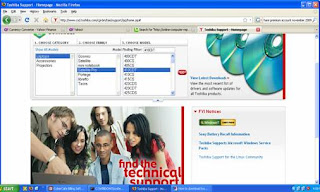
3. select the category in the choose family field,
4. all the models for that category will be listed in the last pane of the search box, select you laptop model in that box and click on Go.
When you click on the GO button, the site will load and display all the drivers for all the operating systems. Now you have to filter the result by some criteria’s like your own installed operating system.
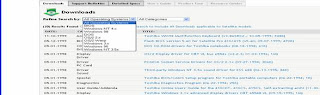
Where you see refine search by, click the drop down list and select your installed operating system. The site will load and display links to all the drivers tof your Toshiba laptop. Just click on each link of the driver you need and it will take you to the download link for that driver, as soon as you have downloaded the driver click on back button on your browser to take you back to the driver list.
Note: to make your search easier you have to know the devices that are in your laptop e.g. does your laptop have a Bluetooth device, wifi etc. this will make your download much easier.
If you follow through this simple steps you should see all the drivers for your laptop,
For more on drivers download please read other articles on how to download drivers for your devices.
youcan ask you question by commenting on the post or send a mail to solutionprovider2000@gmail.com or visit http://online-computer-repairs.blogspot.com. You can subscribe to our feed and stay current with more computer repair articles that will help you keep your computer safe and secured
There is no doubt that the world is now going mobile, every body wants something that is handy and easy to carry around, and this development has triggered innovations and recent technological advancement.
One can buy a laptop and no longer the desktop we all use to have in our houses. There is no problem with the advancement in technology when it comes to laptops and small PDA’s, the problem now is how easy these devices to be maintained are and by what category of human beings. Its not just buying laptop but being able to maintain it and off cause fix it when its faulty.
In this article I will be continueing on my series how to download drivers, I have written on how to download HP drivers,Dell drivers,Acer drivers and now am going to be sharing with you how to download Toshiba drivers, especially for your laptops. Firstly I like to let you know that when ever you are looking for any driver for any device, the first place to check is the device manufacturers website. Don’t be deceived into believing that you will find a better driver outside the manufacturers website. Am not also rulling off the fact that you can get drivers from other site.
In this article I will be showing you step by step guid on how to download Toshiba drivers from Toshiba support website. If you are ready lets go there.
1. go to Toshiba drivers download page http://www.csd.toshiba.com/cgi-bin/tais/support/jsp/home.jsp. when the site opens click on download on the top of the site.
2. if you are downloading drivers for laptop click on laptops when the download page opens.

3. select the category in the choose family field,
4. all the models for that category will be listed in the last pane of the search box, select you laptop model in that box and click on Go.
When you click on the GO button, the site will load and display all the drivers for all the operating systems. Now you have to filter the result by some criteria’s like your own installed operating system.
Where you see refine search by, click the drop down list and select your installed operating system. The site will load and display links to all the drivers tof your Toshiba laptop. Just click on each link of the driver you need and it will take you to the download link for that driver, as soon as you have downloaded the driver click on back button on your browser to take you back to the driver list.
Note: to make your search easier you have to know the devices that are in your laptop e.g. does your laptop have a Bluetooth device, wifi etc. this will make your download much easier.
If you follow through this simple steps you should see all the drivers for your laptop,
For more on drivers download please read other articles on how to download drivers for your devices.
youcan ask you question by commenting on the post or send a mail to solutionprovider2000@gmail.com or visit http://online-computer-repairs.blogspot.com. You can subscribe to our feed and stay current with more computer repair articles that will help you keep your computer safe and secured